
Donec efficitur, ligula ut lacinia
viverra, lorem lacus.
Donec efficitur, ligula ut lacinia
viverra, lorem lacus.
Most photographers learn color grading backwards. They find a preset they like, apply it to everything, and then wonder why the results are inconsistent — sometimes it works, mostly it doesn’t. The preset isn’t the problem. Applying it before the image is technically corrected is.
This guide covers the full workflow in order: what the distinction between color correction and color grading actually means and why it matters, the color theory that explains why certain combinations work, the specific Lightroom tools in the sequence you should use them, and the common looks that professionals create along with how they’re actually built.
Color correction is making the image technically accurate. Neutral whites look white. Skin tones read as skin tones. The shadow regions aren’t contaminated with a green cast from the fluorescent lights overhead. Correction is objective — there’s a right answer, and it’s the image that looks the way the scene actually looked (or the way it should look on a calibrated screen).
Color grading is creative intent. After the image is technically accurate, you deliberately shift colors toward a mood or style. The look is cinematic. The shadows are slightly teal. The highlights glow amber. The foliage is desaturated and a little faded. Grading is subjective — there’s no right answer, only choices that serve or undermine what you’re trying to communicate.
The workflow order is non-negotiable: correct first, then grade. A preset applied to an uncorrected image with a warm color cast just adds creative decisions on top of an existing problem. The cast and the grade compound each other in ways that make the image progressively harder to control. Correct to neutral, then make intentional choices.
One more practical point: color correction happens in the Basic panel (temperature, tint, exposure, contrast). Color grading happens in the Color Grading panel, HSL sliders, and Tone Curve. These are separate steps and separate tools, even though they’re in the same software.
You don’t need a degree in fine art. But understanding two basic relationships from color theory will explain why every popular photographic look works, and why most beginners’ attempts at creating looks fail.
Complementary colors sit directly opposite each other on the color wheel. They create maximum contrast and visual tension. In photographic terms, the pairs that matter most:
When two complementary colors occupy an image together — one in the highlights, one in the shadows — the contrast between them creates visual richness without busyness. The eye reads the contrast as intentional and satisfying. This is why warm highlights and cool shadows feel “professional”: they’re exploiting the complementary relationship.
Analogous colors sit adjacent on the wheel. They harmonize and unify rather than contrast. A landscape image with golden light, warm foliage, and amber-toned shadows is all analogous — the visual result is unified and cohesive. An image graded with three different competing colors from different parts of the wheel usually looks muddy.
The practical rule: choose 1–2 dominant color directions for a grade. One for highlights, one for shadows (preferably near-complementary). Everything else should be neutral or suppressed. More colors competing for attention don’t create complexity — they create chaos.
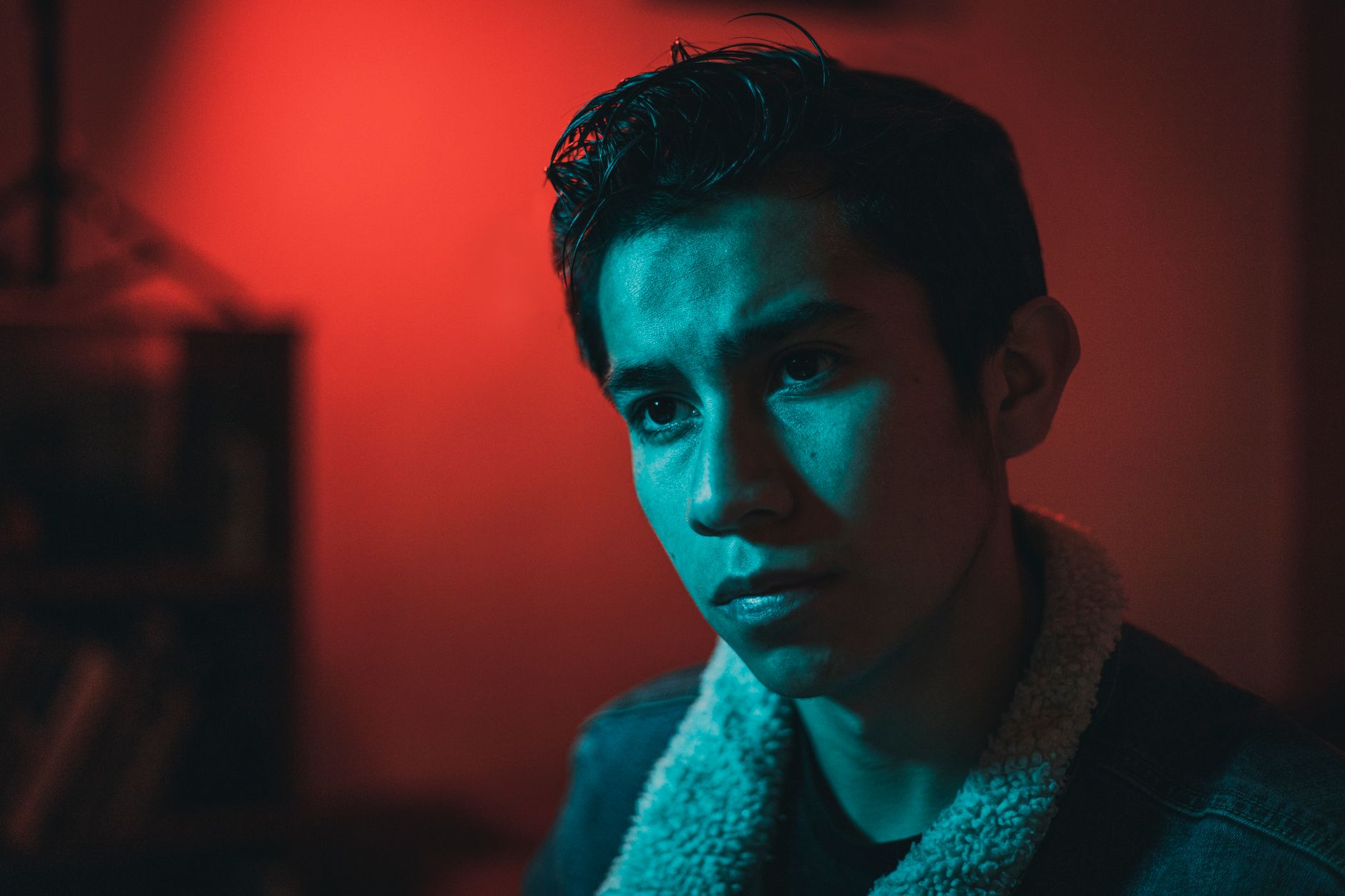
White balance is not color grading. It’s color correction. Set it before you do anything else.
White balance controls the ratio of blue to amber across the entire image (the temperature slider) and the ratio of green to magenta (the tint slider). Together, these two axes define whether the neutral elements in the image — white walls, grey cards, cloudy sky — render as actually neutral.
The correct white balance is whatever makes the neutral elements look neutral. If a white sheet in the image reads warm yellow, the temperature is set too warm. If it reads blue, it’s set too cool. There’s no style judgment here — correction first.
In RAW files, this adjustment is completely lossless — you’re changing how the raw data is interpreted, not reprocessing an already-baked value. In JPEGs, white balance adjustment degrades image data because you’re reprocessing processed information. One more reason to shoot RAW.
How to correct white balance if you have no neutral reference:
The relationship between white balance, color temperature in the real world, and why different light sources require different WB settings connects to the broader exposure triangle context — specifically the camera settings side of understanding how the sensor records what it sees.
This is the main grading tool in Lightroom (Classic and mobile), introduced in 2020 to replace the older Split Toning panel. Three circular color wheels — Shadows, Midtones, Highlights — plus a Global wheel that affects all tonal ranges simultaneously.
Each wheel works the same way: clicking and dragging toward a hue on the outer ring adds that hue to that tonal range. The distance from center controls saturation — a small move near center is subtle, a large move toward the edge is aggressive. A small, precise move is almost always the right amount.
The Blending slider controls how much each wheel’s range overlaps with adjacent tones. At 0, the three ranges are cleanly separated — shadow grading affects only shadows, highlight grading affects only highlights. At 100, the ranges bleed significantly into each other. The default of 50 is reasonable for most uses. For moody split-grade work where the contrast between cool shadows and warm highlights is the point, lower blending (20–30) keeps them distinct.
The Balance slider shifts where the midtone definition sits. Push it negative and what the panel considers “midtones” shifts toward the shadows, effectively giving highlight grading more of the tonal range. Push positive and midtones shift toward highlights. Usually leave it at 0 unless you need to specifically bring more of the image into the highlights or shadows wheel’s influence.
Practical starting sequence for a warm highlights / cool shadows grade:
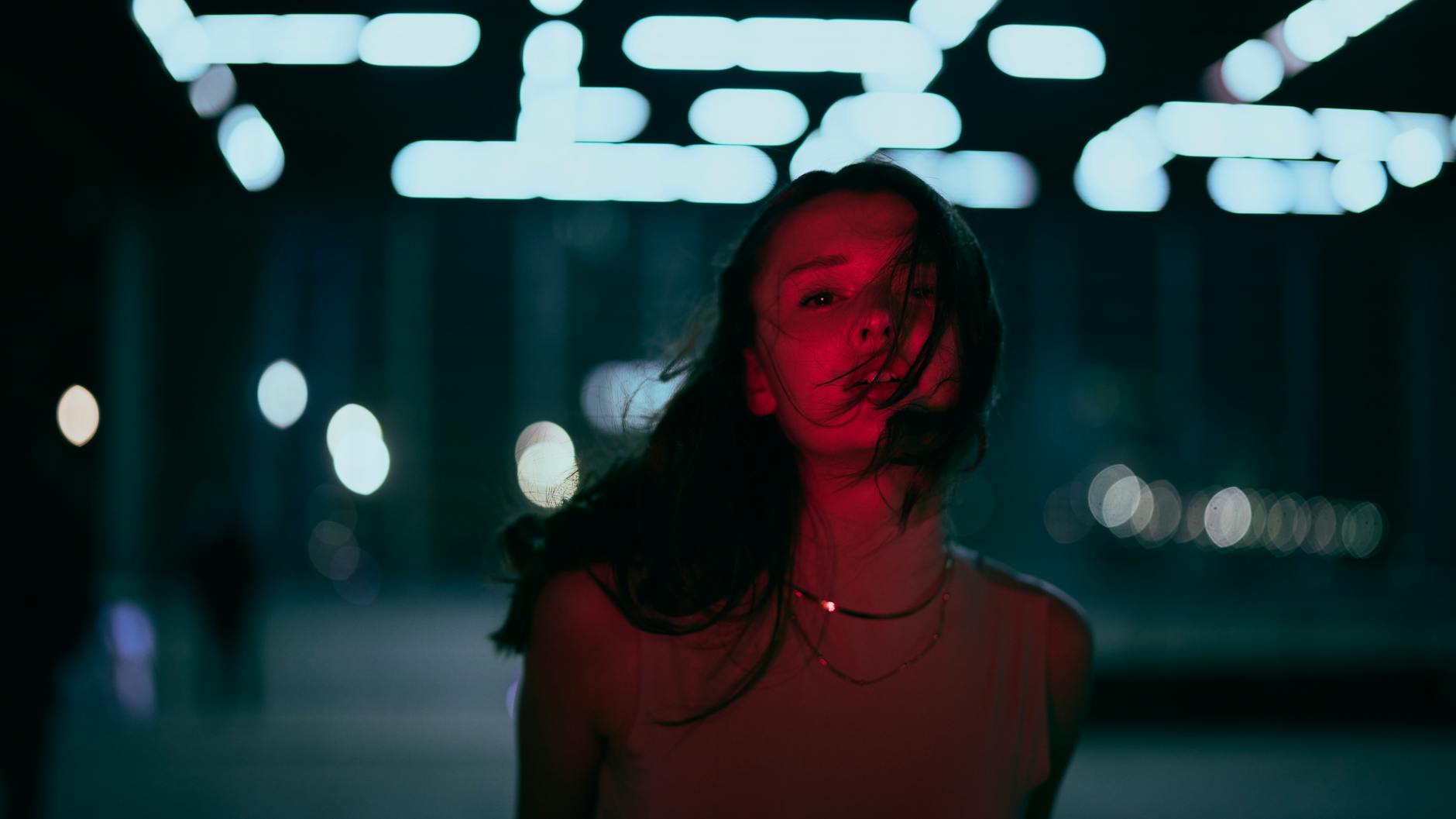
Color Grading wheels affect broad tonal ranges. HSL (Hue, Saturation, Luminance) sliders affect specific color families in the image. They’re different tools and both are necessary.
Each of the eight color families — Red, Orange, Yellow, Green, Aqua, Blue, Purple, Magenta — has three sliders:
Hue: shifts that color toward adjacent colors on the wheel. Drag the Orange hue slider left and skin tones shift toward red; drag right and they shift toward yellow. This is the first tool to reach for when a color is accurate in saturation but the wrong hue.
Saturation: controls the intensity of that specific color. Desaturate the Blue channel to take aggressive blue skies down to a more muted register. Desaturate Orange to cool the intensity of warm skin tones.
Luminance: brightens or darkens pixels of that specific color. Increase Yellow luminance to brighten foliage without affecting the sky. Decrease Blue luminance to darken a sky while leaving everything else unchanged.
Practical applications:
The targeted adjustment tool (the small circle icon above the sliders) turns the HSL panel into a sample-and-drag interface: hover the cursor over any area in the image, click and drag up or down, and Lightroom adjusts whichever color channel is under the cursor. For skin tone work, this is significantly faster and more accurate than adjusting sliders by channel name.
Orange and teal. The dominant cinematic look of the last decade-plus, visible in most Hollywood film color grading and commercial photography. It works because skin tones (orange-amber) and environmental cool tones (teal-blue) are near-complementary.
Build it: Highlights wheel toward 30–45° (amber-orange), saturation 20–30%. Shadows wheel toward 190–210° (teal), saturation 25–35%. In HSL: boost Orange saturation +10–15, boost Aqua saturation +15–20, desaturate Green slightly. The contrast between warm skin and cool environment should feel obvious but not neon. Pull back until it reads “cinematic” not “Instagram filter.”
Warm and airy. Used heavily in lifestyle, wedding, and food photography. Reads as natural, bright, approachable. The key is that it’s warm throughout without heavy shadow grading — it’s not split complementary, it’s analogous.
Build it: correct white balance first (this look often starts with a warmer WB, 5800–6200K). In Color Grading: Highlights wheel slightly orange-warm (15–20°, saturation 10–15%). Shadows wheel neutral or barely warm — no teal. Lift the blacks (tone curve: drag the bottom-left point up to roughly value 30–40 rather than 0). In HSL: desaturate Blue and Aqua by -15 to -20, which removes the cool competition with the warm tones. The result is a lifted, soft, warm image. Landscape photography at golden hour often starts with this look and doesn’t require heavy grading — the light does most of the work.
Moody dark. Used in portrait work, street photography, dark food photography, certain editorial styles. High contrast, low saturation, cool shadows.
Build it: reduce overall saturation in the Basic panel by -10 to -15 (don’t kill it, just take the edge off). Shadows wheel toward 185–200° (blue), saturation 20–30%. Highlights wheel neutral or slightly warm. Tone curve: pull bottom-left point down slightly (crush blacks), steepen the mid-tone section slightly (add contrast). In HSL: desaturate any colors that feel “bright” or distracting — typically Greens, Yellows, Blues. The shadow character in the image is doing a significant amount of work in this look — the grading should reinforce the directional quality of the original light, not fight it. Good moody portrait lighting and a moody grade compound each other; a flat-lit portrait with heavy moody grading just looks muddy. For how studio portrait lighting creates the shadow structures that grading then enhances, the portrait lighting guide covers the setup side.
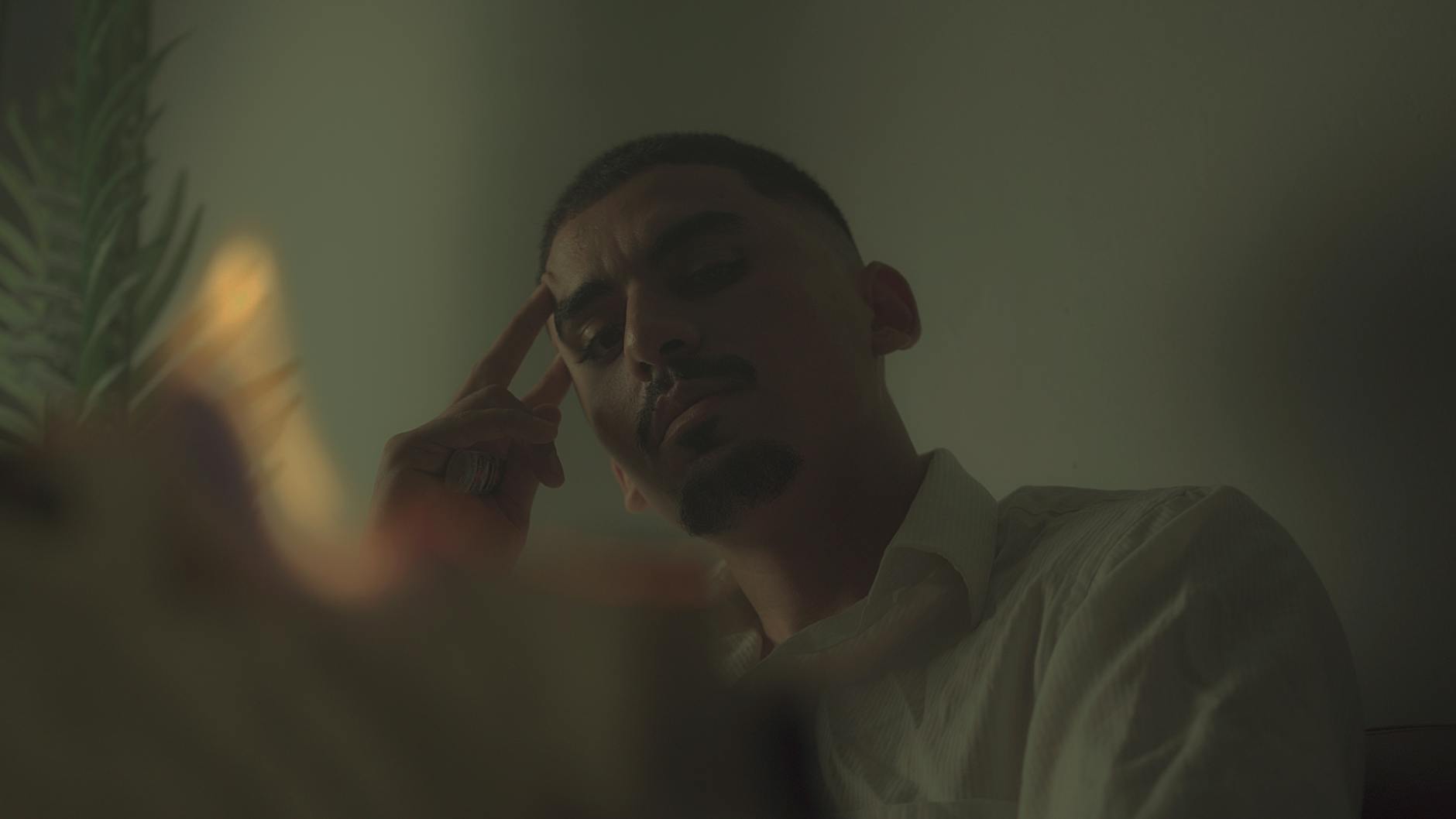
Color grading B&W images uses an entirely different approach because there are no colors left to grade — only tones.
The key tool in Lightroom for B&W is the B&W Mix panel: eight sliders corresponding to the same color families as HSL, but controlling how bright or dark each original color converts to grey. Pull the Red slider left and anything that was red in the original image converts to a darker grey. Pull Orange right and skin tones become lighter grey. This lets you control the tonal relationships in a B&W image with precision that’s impossible in camera.
For toning a B&W image (sepia, cyanotype, split tone): use the Color Grading panel. Shadows wheel toward blue-cyan for cool shadows. Highlights wheel toward amber-brown for warm highlights. The combination of cool shadows and warm highlights in monochrome is the classic split-tone look. Sepia: push both wheels toward brown-amber, slightly desaturated.
The full case for what makes a B&W image work — contrast, tonal separation, using color filters for drama before conversion — is in the black and white photography guide.
Lightroom is the right tool for most photographers’ color grading workflow. Non-destructive, RAW-native, batch-processing across an entire gallery, the Color Grading panel and HSL interface are purpose-built for this work. If you’re grading 200 images from a wedding or a landscape series, Lightroom is significantly faster than any alternative.
Photoshop offers more granular control through adjustment layers: Selective Color, Hue/Saturation, Color Balance, and Curves adjustments stacked and masked to affect specific parts of the image independently. You can grade the sky differently from the foreground, or add a different grade to the subject versus the background. For images requiring retouching and grading simultaneously — commercial work, heavily composited images — Photoshop is the better environment. The Camera Raw filter in Photoshop gives access to the same sliders as Lightroom without leaving PS.
Capture One has notably stronger base color rendering than Lightroom, particularly for skin tones. Its Color Balance tool (analogous to the Color Grading panel) is intuitive. Color tools in Capture One are in some ways more precise, particularly the Color Editor for targeted hue adjustment. The trade-off is a steeper learning curve and subscription cost. For portrait and fashion photographers where skin tone accuracy is central, it’s worth learning.
Presets are saved combinations of all settings. They’re starting points, not finished grades. A preset applied to an image with the wrong white balance, different lighting conditions, and different dominant colors will look different from the image it was created on. Correct WB first, then apply the preset as a starting point, then adjust for the specific image. The most useful preset is one you create from your own successful grade and apply to similar images.
Grade the series, not the shot. A wedding gallery, a product catalog, a landscape series — the grade should be consistent across all images in that set. The eye detects inconsistency between adjacent images even when it can’t identify the specific difference. After grading one representative image, sync those settings to the rest of the set (in Lightroom: select all, Sync Settings, check only the relevant panels).
The “1–2 colors” rule. A grade that adds warm orange to highlights, cool teal to shadows, boosts green saturation, adds purple to midtones, and shifts skin tones toward red has five competing creative decisions. That’s not a look — it’s a pile of decisions. Choose one primary direction (warm highlights) and one supporting direction (cool shadows). Everything else should be neutral or suppressed.
Step back and toggle. After building a grade, toggle the entire set of color adjustments off and on. The eye adapts to color shifts faster than you expect — working on the same image for 20 minutes means you’ve already adjusted to the cast and can no longer evaluate it accurately. Stepping back, looking at something else, and returning resets perception. So does the before/after toggle.
Export and check on another screen. The editing monitor is one data point. A calibrated screen is better, but even comparing your edited image on a phone screen catches color casts that look normal on the editing monitor. If your monitor is uncalibrated and running too warm, your grades will be too cool on every other screen.
Match the grade to the light. Color grading reinforces the quality of the existing light — it doesn’t replace it. A heavily cool-graded image from flat midday light looks processed. The same grade applied to an image shot at golden hour looks cinematic, because the warm-cool relationship already exists in the original light. The grade amplifies what’s already there.
What is color grading in photography?
Deliberately adding or shifting colors in an image to create a mood, style, or consistent look. Distinct from color correction (which makes the image accurate) — color grading makes intentional creative choices on top of a technically corrected image.
What’s the difference between color grading and color correction?
Correction is objective: neutral whites look white, no unwanted color casts, the image looks like the scene looked. Grading is subjective: you add warmth to the highlights, push the shadows cool, create a consistent look. Always correct first, then grade.
How do I color grade in Lightroom?
Correct white balance in the Basic panel first. Then use the Color Grading panel to shift hue in shadow, midtone, and highlight ranges. Use HSL sliders to adjust specific colors (skin tones, sky, foliage). Start subtle — 10–20% saturation on the grading wheels is usually enough. Toggle before/after to evaluate whether the amount is correct.
What is the orange and teal look?
A split-complementary grade: highlights pushed toward amber-orange (where skin tones already sit), shadows pushed toward teal-blue. The contrast between the complementary colors creates visual richness. Built in Lightroom using the Color Grading panel: Highlights wheel toward 30–40°, Shadows wheel toward 190–210°, both at 15–30% saturation.
Do I need Photoshop for color grading?
Not for most photography workflows. Lightroom handles the full color grading process efficiently with better batch workflow than Photoshop. Photoshop is worth adding when you need to grade specific areas of an image differently from each other, or when grading is integrated with heavy retouching in the same workflow.
